
Before You Start
Tick these off first, then choose your device so the steps match what you see.
01. Download a Player From the App Store
On Apple devices there’s nothing to sideload. You just install a player app from the App Store and sign in.
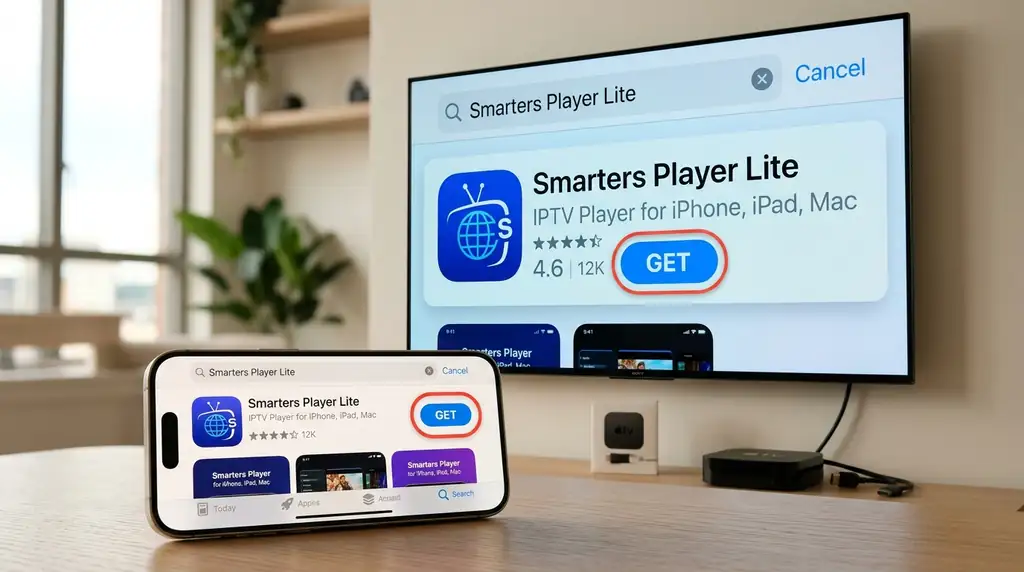
- Open the App Store on your Apple TV.
- Go to Search and type "Smarters Player Lite".
- Select Get. If it asks, confirm with your Apple ID or on your iPhone.
Good to know
Smarters Player Lite is free and the easiest place to start. UHF and iPlayTV are paid alternatives with a very polished Apple TV look. Your Krooz TV login works in all of them.
02. Open the App and Choose Xtream Codes
The app asks how you want to sign in. Pick Xtream Codes; it’s the quickest and keeps everything organised.
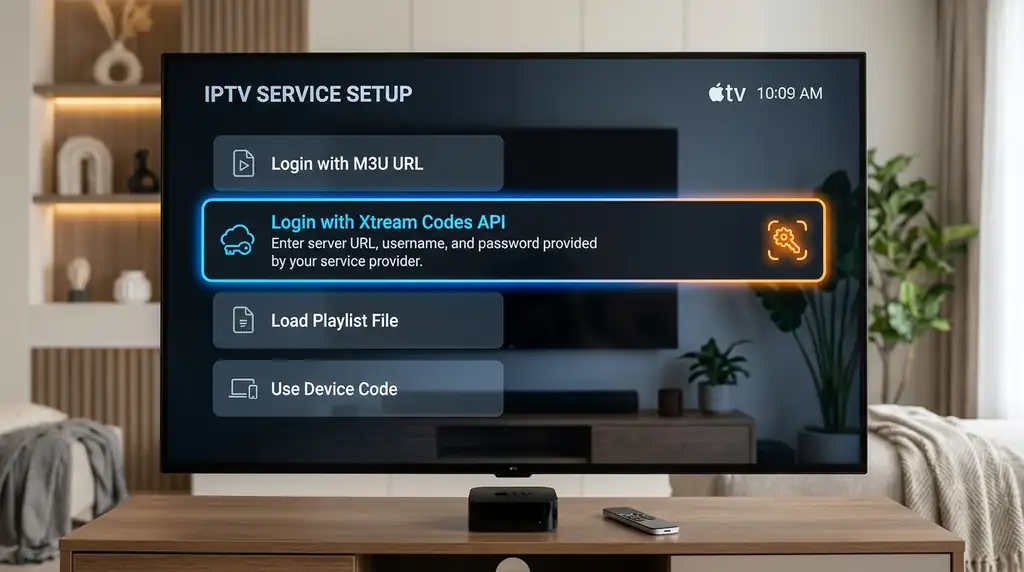
- Open Smarters Player Lite and accept the terms.
- With the remote, select "Login with Xtream Codes API".
Good to know
Xtream Codes is better than the long M3U link: live TV, movies and series are sorted for you, and the TV guide comes with it.
03. Enter Your Krooz TV Login
Type a name for the profile, then the username, password and server URL from your welcome email.
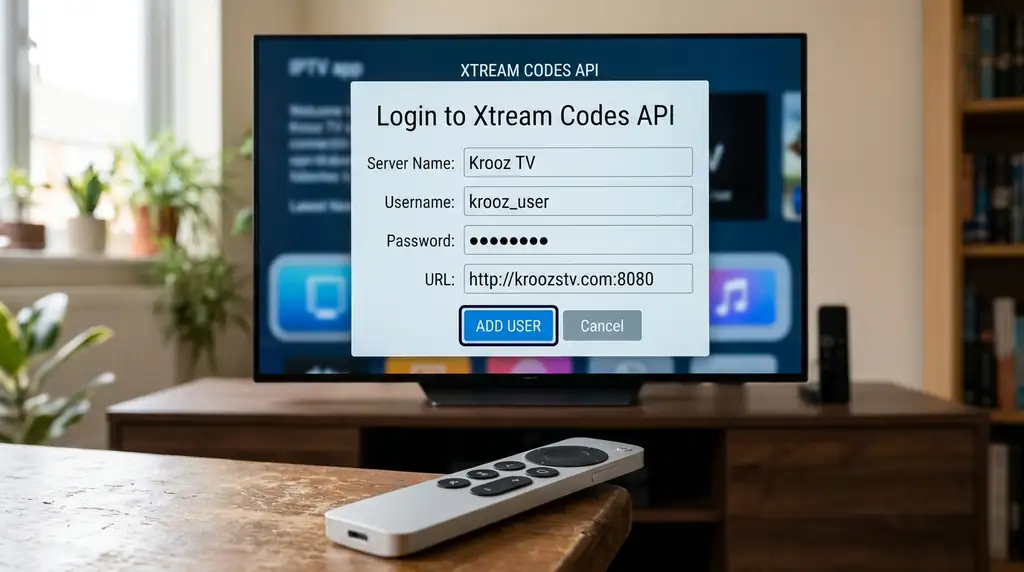
- In the name field, type "Krooz TV" (any name works).
- Enter your username, password and server URL. Your iPhone pops up a keyboard, so you can paste them from the email.
- Select ADD USER.
http://server-address:portCopy the exact server URL from your Krooz TV welcome email, including http:// and the port number.
Good to know
iPhone likes to capitalise the first letter of words. Check that your username didn’t get a capital letter it shouldn’t have, and that there’s no space after the server URL.
04. Set Up Your Other Apple Devices
Want Krooz TV on the iPad and the Apple TV too? Some players can sync your profile through iCloud, so you only type it once.
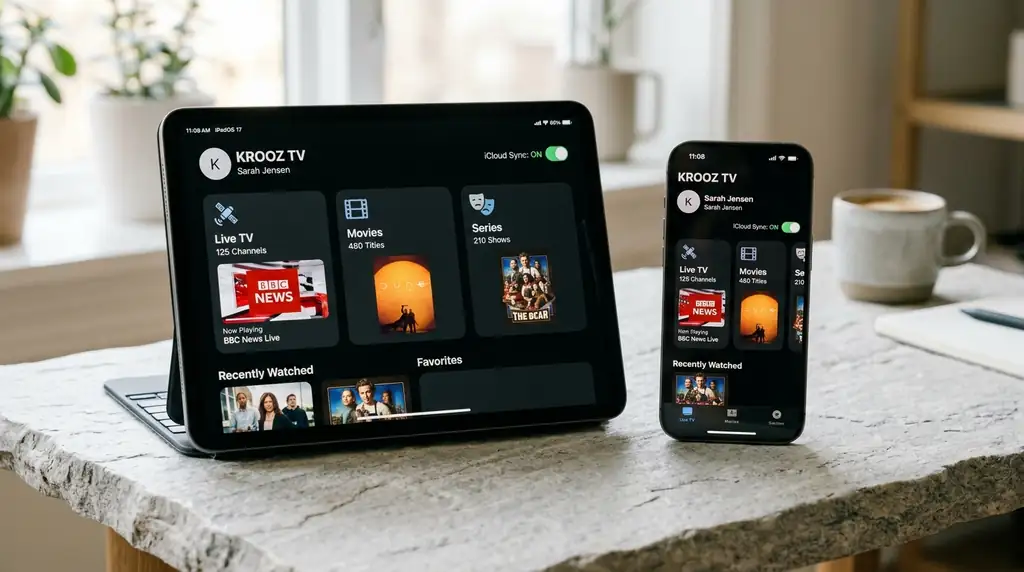
- If your player has an iCloud sync option in its settings, turn it on.
- Make sure the Apple TV uses the same Apple ID as your iPhone (Settings > Users and Accounts).
Good to know
Remember that your plan sets how many screens can play at the same time. Installing on many devices is fine; watching on all of them at once needs a bigger plan.
05. Open Live TV and Load the Guide
The first time, give the app a moment to download the channel list and the TV guide.
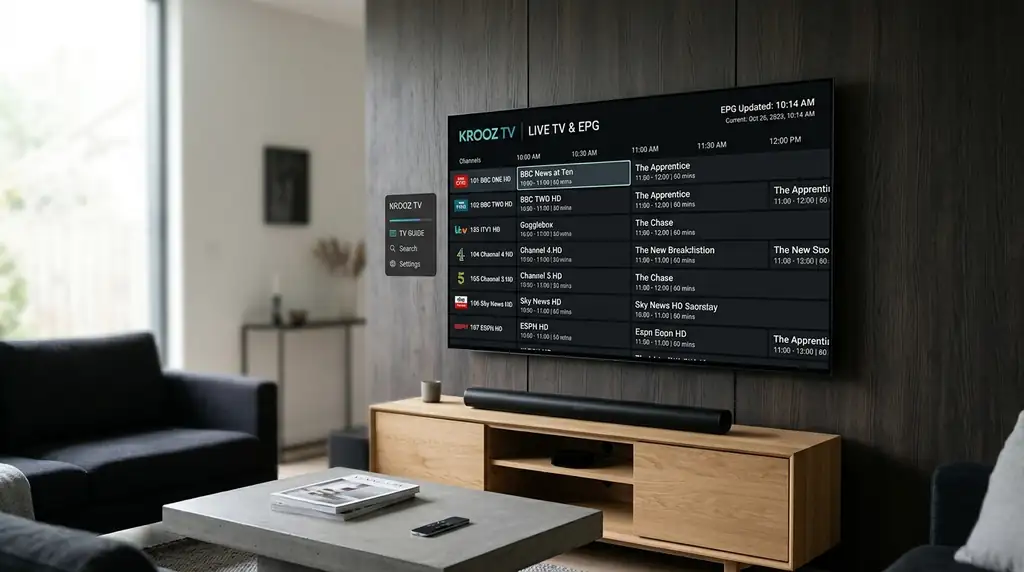
- Select Live TV and wait for the channels to load.
- Open the TV guide (EPG) and choose Update EPG once so programme times appear.
Good to know
Guide an hour or two off? Look for "EPG time shift" in the app’s settings and adjust it, or check the time zone on your device.
06. Watch in 4K or Send It to the TV With AirPlay
You’re done. A couple of settings on the Apple TV make sport and films look their best.
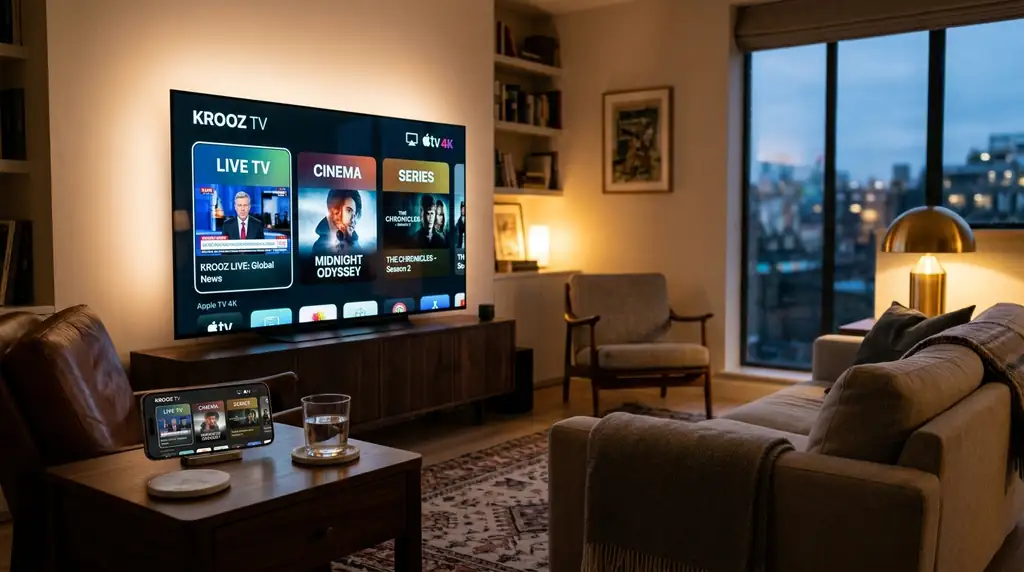
- In tvOS, go to Settings > Video and Audio > Match Content and turn on Match Dynamic Range and Match Frame Rate.
- If a channel stutters, try the other player engine in the app’s settings (many apps offer a built-in VLC or FFmpeg player).
Good to know
For live sport, watching in the app on the Apple TV itself is smoother than AirPlay from the phone, because the stream doesn’t have to go through your iPhone first.
Devices That Work With Krooz TV
The app we suggest for each one, and what to expect.
| Device | System | Suggested App | Picture & Extras |
|---|---|---|---|
Apple TV 4K (3rd gen, 64 GB / 128 GB) The best Apple device for Krooz TV. Handles 4K sport without breaking a sweat. | tvOS 18 and later | Smarters Player Lite, UHF, iPlayTV | 4K HDR, Ethernet on the 128 GB model |
Apple TV 4K (1st and 2nd gen) Works perfectly. Turn on Match Frame Rate for smoother sport. | tvOS 17 and later | Smarters Player Lite, iPlayTV | 4K Dolby Vision, Ethernet |
iPhone (recent models) Great on Wi-Fi and on 4G/5G. Also handy as a keyboard when you set up the Apple TV. | iOS 17 and later | Smarters Player Lite, UHF, GSE Smart IPTV | AirPlay, Picture in Picture |
iPad, iPad Air, iPad mini, iPad Pro In landscape, many players show the guide and the picture side by side. | iPadOS 17 and later | Smarters Player Lite, UHF | AirPlay, Picture in Picture |
Apple TV HD Fine for HD channels. It can’t play 4K, so stick to the HD versions. | tvOS 17 and later | Smarters Player Lite | Full HD (1080p), Ethernet |
Something Not Working? Quick Fixes
The problems we help Apple users with most, and how to sort them out.
"Invalid details" when I add my login
Cause: Usually the iPhone keyboard capitalised a letter, or a space got pasted at the end of the server URL.
- Check the first letter of your username and password. The keyboard may have made it a capital.
- Delete the server URL and enter it again exactly as in the email, with http:// and the port, and no space or slash at the end.
- Make sure you’re not already watching on more screens than your plan allows.
Channels play, but the TV guide is empty
Cause: The guide didn’t finish downloading, or the time zone on the device is wrong.
- In the app, go to Settings > EPG and update it. Stay on that screen for a minute.
- On the Apple TV, check that Settings > General > Time Zone is set to automatic.
- Signed in with an M3U link? Switch to Xtream Codes, which brings the guide with it.
Some channels freeze or have no sound
Cause: Apple’s built-in player can’t play every audio format some channels use.
- In the app’s settings, switch the player from the native player to the built-in VLC or FFmpeg player, if it has one.
- On the Apple TV, try Settings > Video and Audio > Audio Format > Change Format and pick Stereo or Dolby Digital 5.1.
The profile I added on my iPhone doesn’t show up on the Apple TV
Cause: The devices use different Apple IDs, or iCloud is turned off for the app.
- Check both devices use the same Apple ID.
- On the iPhone, go to Settings > your name > iCloud > Show All and make sure the player app is switched on.
- Close the app on the Apple TV and open it again. Still nothing? Just sign in on the Apple TV directly.
Streams keep buffering
Cause: A weak Wi-Fi signal, or an internet provider that slows down video at busy times.
- Move the Apple TV to 5 GHz Wi-Fi, or connect it with a cable.
- If you use a VPN (the Apple TV supports VPN apps since tvOS 17), try a server closer to you.
- In the player settings, switch the stream format between TS and HLS and see which plays better.
Frequently Asked Questions
What people ask us most about Krooz TV on Apple devices.
No, never. You install a normal player from the App Store, like Smarters Player Lite, UHF or iPlayTV, and sign in with your Krooz TV details. That’s all.