
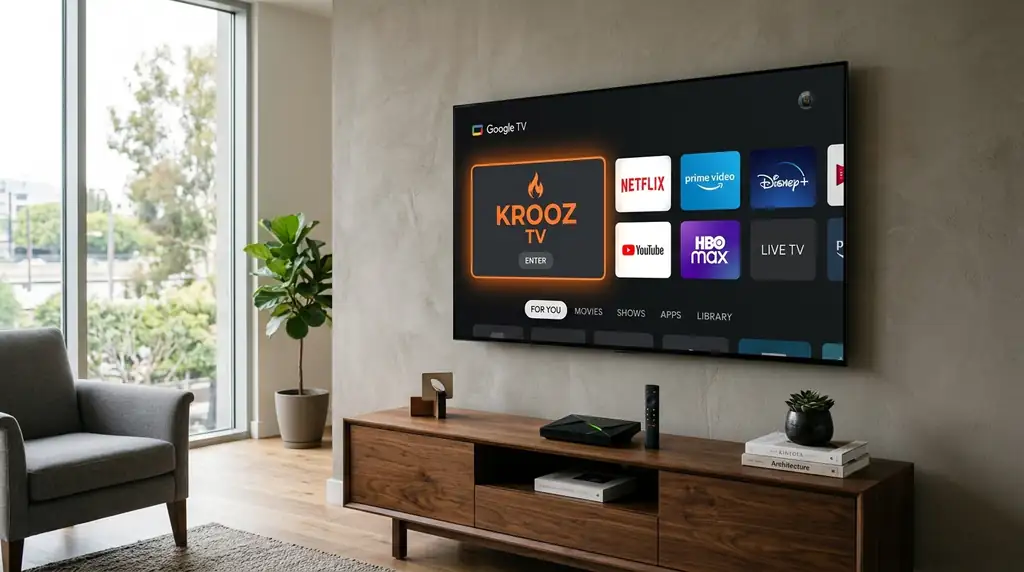
Before You Start
Tick these off first, then pick your device so the menus in each step match your screen.
01. Get Downloader From Google Play
Downloader is a free app that lets you install the player you’ll watch Krooz TV in. It’s right there in Google Play.
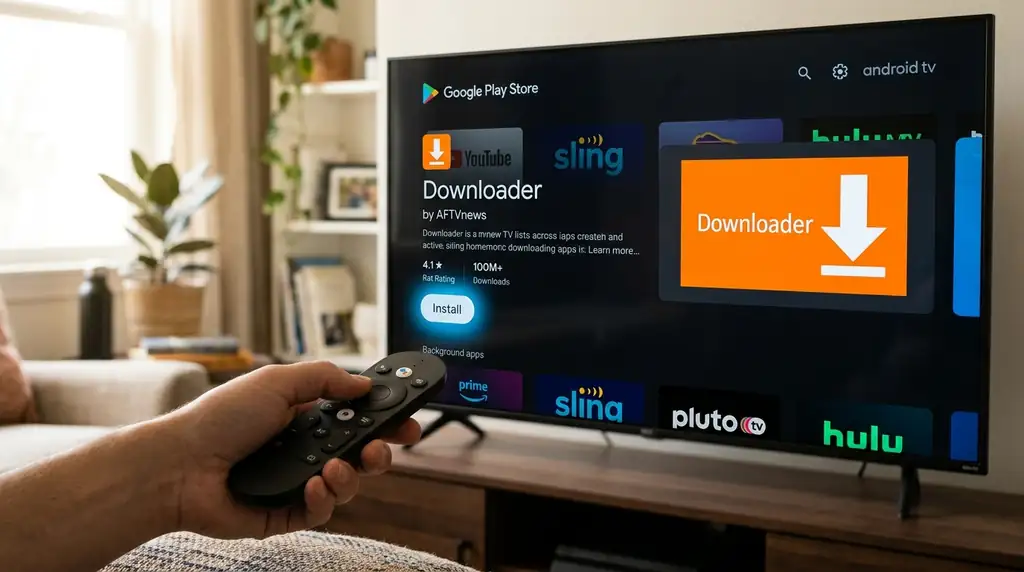
- On the home screen, go to the Apps tab and open the Google Play Store (or just ask Google Assistant to open it).
- Search for "Downloader" and pick the one by AFTVnews.
- Press Install. Don’t open it yet, there’s one setting to change first.
Good to know
Shortcut: TiviMate and IPTV Smarters Pro are often in Google Play too. If you find your player there, install it directly and jump to Step 5.
02. Let Downloader Install Apps
Android TV only installs apps from Google Play unless you allow it. You only need to allow it for Downloader.
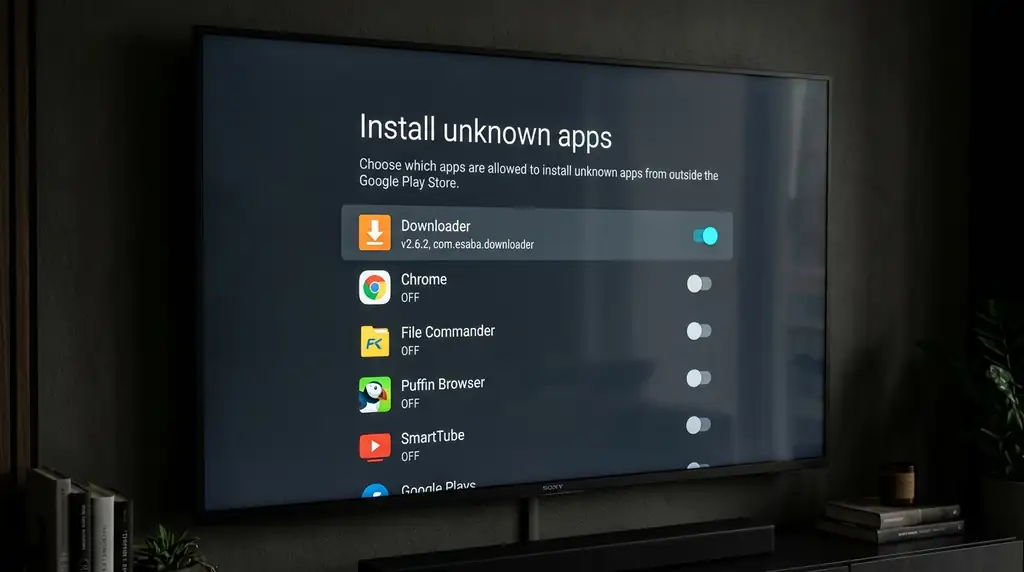
- Open Settings (the gear at the top right).
- Go to Apps, then Security & Restrictions, then Unknown sources. On some TVs it’s Apps > Special app access > Install unknown apps.
- Find Downloader in the list and switch it on.
Good to know
Can’t find Security & Restrictions? Go to Settings > System > About and click "Android TV OS build" seven times. The option shows up after that.
03. Type the Download Code for Your Player
Open Downloader and type a short code. It downloads the player app that plays your Krooz TV channels.
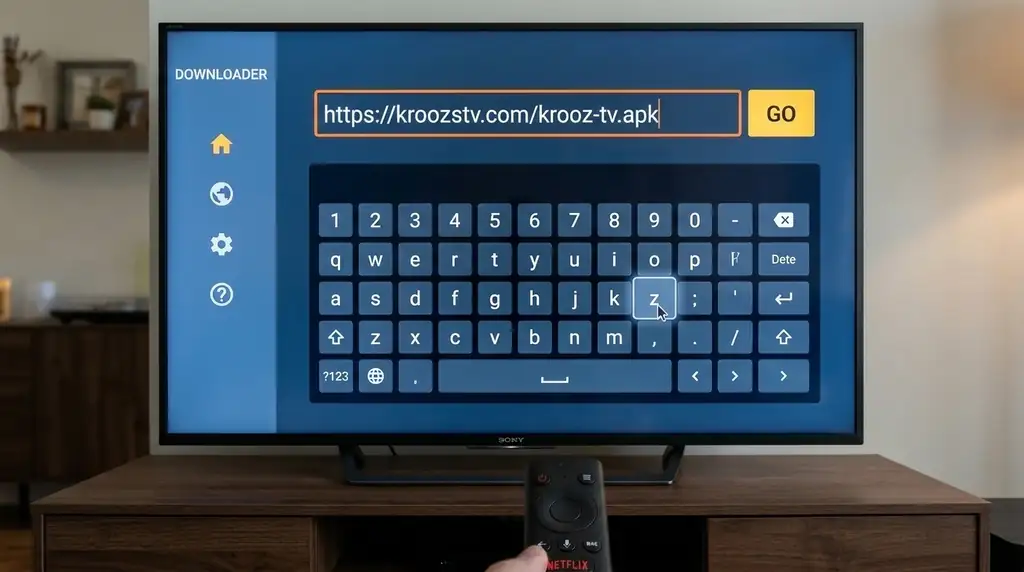
- Open Downloader and press Allow when it asks to access files. Close the welcome message.
- Click on the box in the middle of the screen.
- Type 78522 for TiviMate or 250931 for IPTV Smarters Pro and press Go.
78522 = TiviMate | 250931 = IPTV Smarters ProType only the numbers. If a code stops working, message us on WhatsApp and we’ll send a new one.
Good to know
Only use the codes on this page or the ones our support team sends you. Codes from random websites can lead to modified apps.
04. Install the Player, Then Delete the File
When the download is done, Android asks if you want to install the app. Say yes, then tidy up.
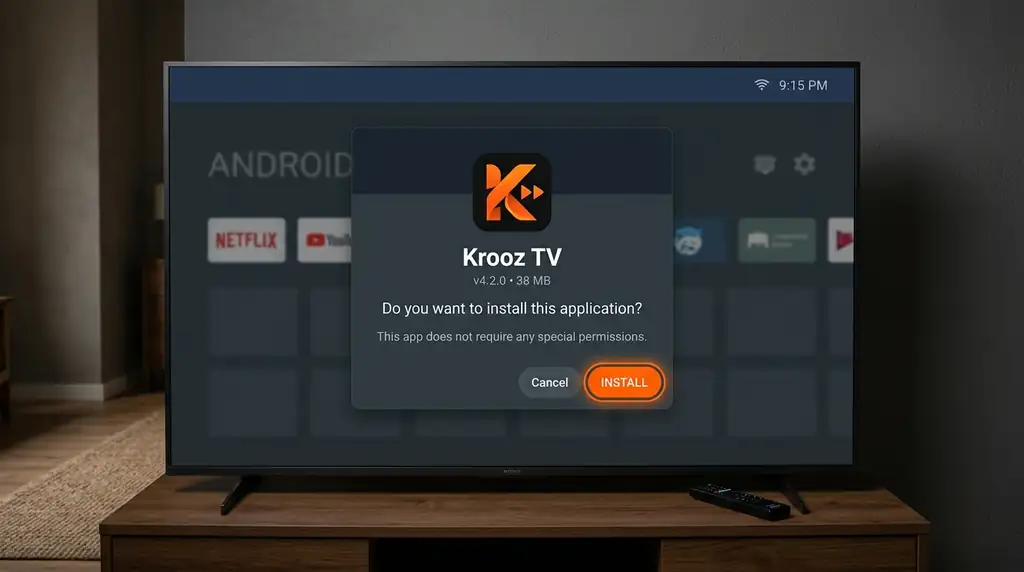
- Press Install on the screen that pops up.
- If Google Play Protect shows a warning, choose Install anyway. It does this for every app that doesn’t come from Google Play.
- When it says "App installed", press Done, then Delete twice in Downloader to remove the leftover file.
Good to know
Deleting the file doesn’t remove the app. It only clears the installer you don’t need anymore.
05. Put the App on Your Home Screen
Apps installed this way can end up at the very end of your app list. Move it to the front so it’s one click away.
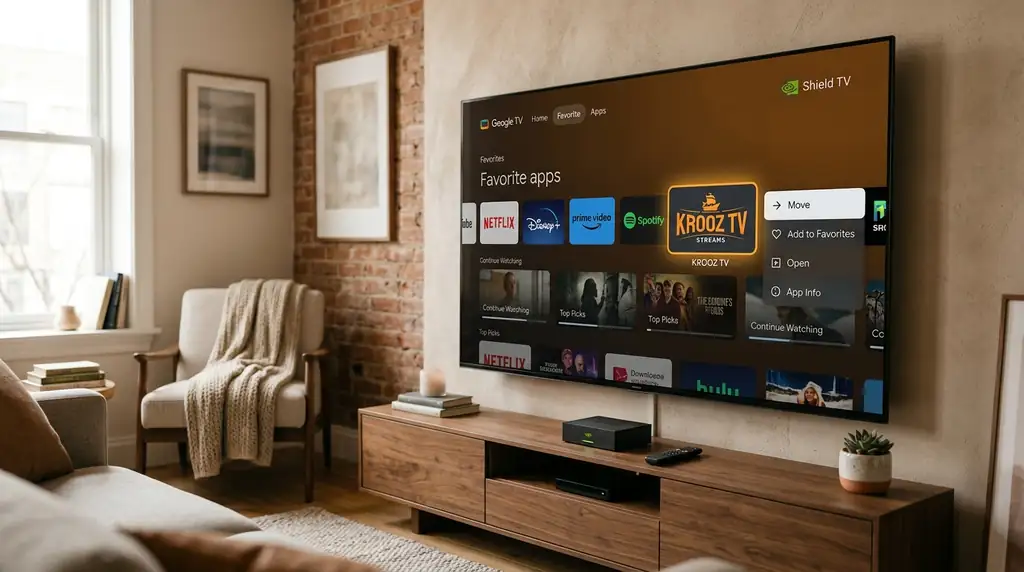
- Press Home, go to Your apps and choose See all.
- Highlight the player, hold the middle button on the remote and pick Move (or Move to front).
- Press Back. The app now sits at the start of your apps row.
Good to know
On some older home screens the app shows a small icon instead of a big banner. That’s normal and doesn’t change anything.
06. Sign In to Krooz TV
Open the player, add your Krooz TV login, and your channels, movies and TV guide load.
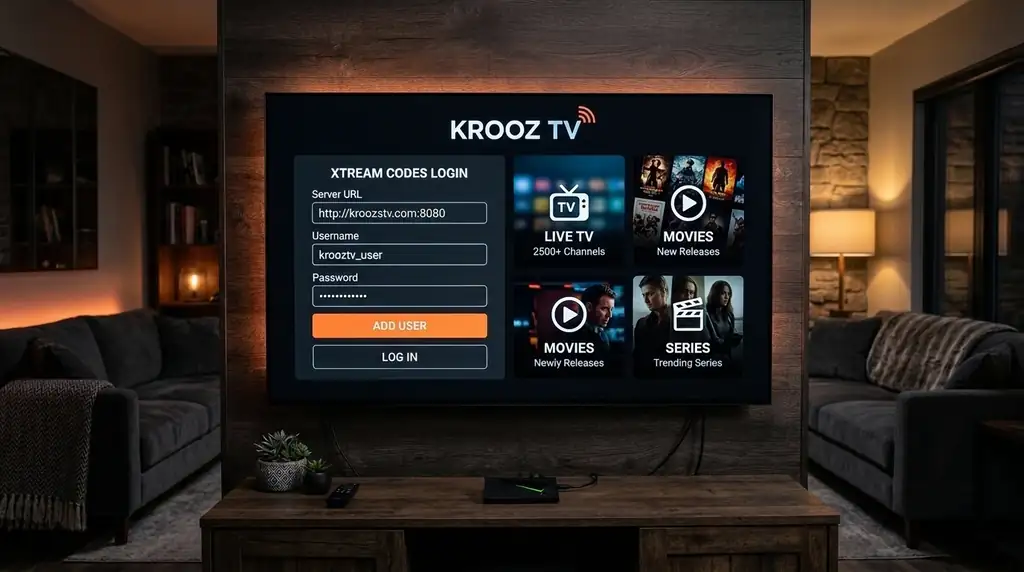
- Open the player from your home screen.
- Choose Xtream Codes (in IPTV Smarters: "Login with Xtream Codes API") and enter the server URL, username and password from your email.
- Press Add User or Next. The first load takes up to a minute while live TV, movies, series and the guide come in.
Good to know
On the Shield, turn on AI upscaling in Settings > Device Preferences > Display & Sound. HD channels look noticeably sharper on a 4K TV.
Android TV Devices That Work With Krooz TV
The popular ones, and where the unknown apps setting is on each.
| Device | System | RAM / Storage | Where to Find Unknown Apps |
|---|---|---|---|
Nvidia Shield TV Pro (2019) 4K Dolby Vision, AI upscaling, Ethernet | Android TV 11 | 3 GB / 16 GB | Settings > Device Preferences > Security & Restrictions > Unknown sources |
Nvidia Shield TV (2019 tube) 4K Dolby Vision, Ethernet | Android TV 11 | 2 GB / 8 GB | Settings > Device Preferences > Security & Restrictions > Unknown sources |
Google TV Streamer (4K) 4K HDR10+, Dolby Vision, Ethernet | Android TV 14 | 4 GB / 32 GB | Settings > Apps > Security & Restrictions > Unknown sources |
Chromecast with Google TV (4K / HD) 4K Dolby Vision (4K model) | Android TV 12–14 | 2 GB / 8 GB | Settings > Apps > Security & Restrictions > Unknown sources |
Onn 4K Pro (Google TV) 4K Dolby Vision, Wi-Fi 6, Ethernet | Android TV 12–14 | 3 GB / 32 GB | Settings > Apps > Security & Restrictions > Unknown sources |
Sony, TCL, Hisense and other Google TVs 4K HDR | Android TV 11–14 | 2–3 GB / 16–32 GB | Settings > Apps > Special app access > Install unknown apps |
Something Not Working? Quick Fixes
The problems we help people with most, and how to fix them yourself.
I can’t find "Unknown sources" or "Install unknown apps"
Cause: Some Google TV models hide it until developer mode is on.
- Go to Settings > System > About (on the Shield: Device Preferences > About).
- Scroll to "Android TV OS build" and click it seven times, until it says you’re a developer.
- Go back to Settings > Apps > Security & Restrictions > Unknown sources and switch Downloader on.
Google Play Protect warns me or blocks the install
Cause: Play Protect shows this for any app that doesn’t come from Google Play.
- On the warning, choose "More details", then "Install anyway".
- If it still won’t let you, open Google Play > your profile picture > Play Protect > settings, turn scanning off just for the install, and turn it back on afterwards.
"App not installed"
Cause: Usually not enough space, or an older version of the same app is already installed.
- Free up at least 250 MB under Settings > Device Preferences > Storage. Clearing the cache of apps you rarely use helps.
- Uninstall any older version of the player, then install again.
- On the 2019 Shield tube, ask us for the version made for your device.
Channels stutter or keep buffering
Cause: Most often weak Wi-Fi, or the player decoding video in software.
- In the player’s settings, switch the decoder to Hardware (HW).
- If your device has a network port, plug in a cable. It makes the biggest difference for 4K sport.
- Set the buffer to Medium. Still stuttering? Send us the channel name and the time on WhatsApp.
The login fails or the playlist is empty
Cause: Nearly always a typo: a space at the end, a wrong capital letter, or http:// missing from the server URL.
- Type your details with the Google TV or Shield TV app on your phone, or paste them, so there are no extra spaces.
- Enter the server URL exactly as it appears in your email, including the port number if there is one.
- Clear the player’s cache in Settings > Apps, open it again and sign in.
The guide loads but channels just keep spinning
Cause: Some internet providers block or slow down streams, especially in the evening.
- Change the DNS on your router or TV to 1.1.1.1 (Cloudflare) or 8.8.8.8 (Google).
- Restart the device from Settings > System > Restart.
- If it only happens during big games, a VPN app from Google Play usually gets around it.
Frequently Asked Questions
What people ask us most about Krooz TV on Android TV.
Yes. The Shield, the Chromecast with Google TV, the Google TV Streamer and Google TVs from Sony, TCL, Hisense and others all run the players Krooz TV uses, like TiviMate and IPTV Smarters Pro.