
Before You Start
Tick these off first. Then pick your Fire OS version so the steps match the menus on your TV.
01. Open Settings on Your Fire TV
Everything starts in the Settings menu, the little gear icon on the home screen.
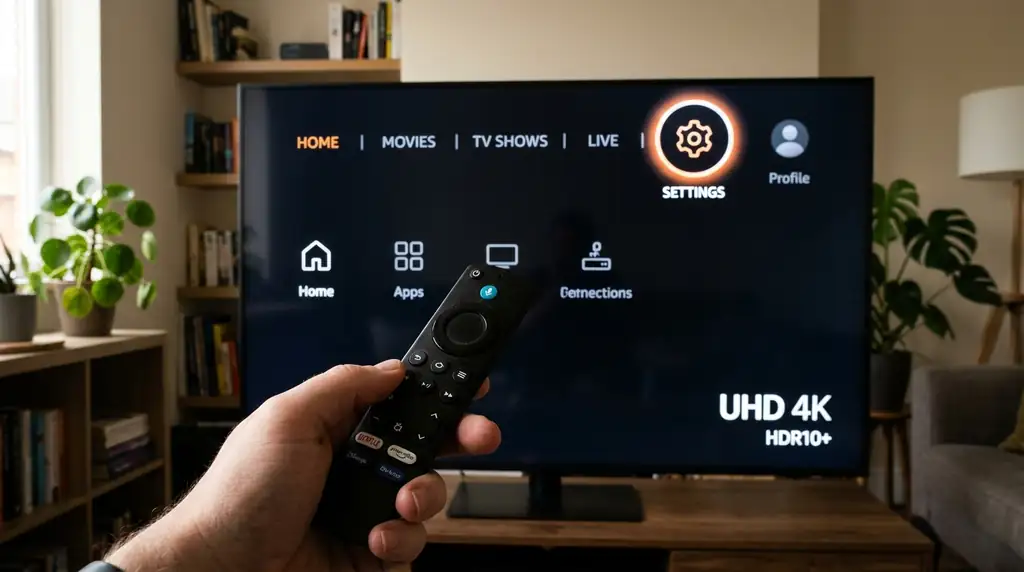
- Press the Home button on your remote.
- Move all the way to the right until the gear icon (Settings) is highlighted.
- Press the middle button on the remote to open it.
Good to know
Just switched the stick on? Give it a few seconds to finish loading before you start clicking around, or the menu can feel slow.
02. Turn On Developer Options
This is the step most people get stuck on. Amazon hides the setting that lets you install apps from outside its store, so you have to unlock it first.
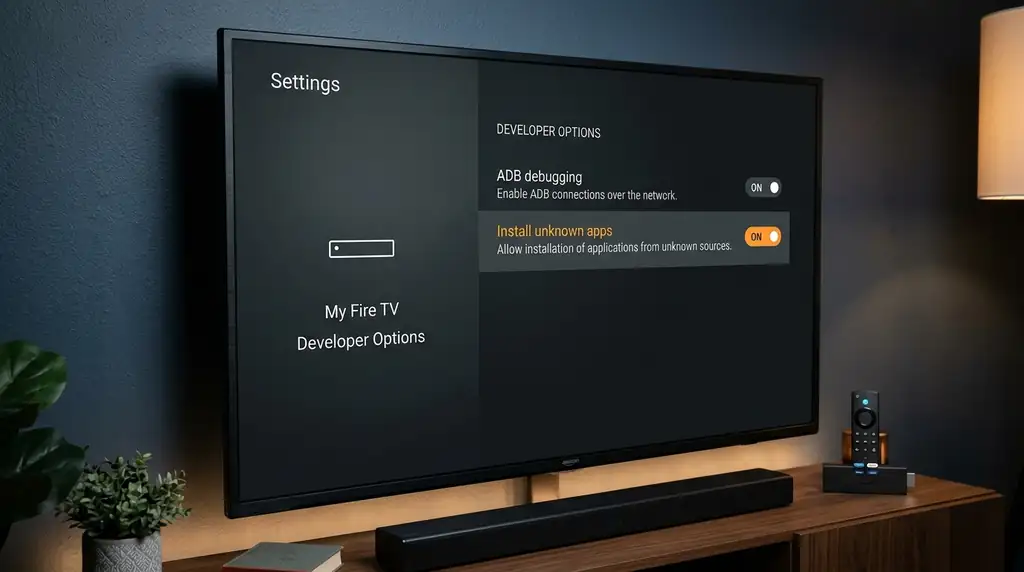
- In Settings, go to My Fire TV, then About.
- Highlight the name of your stick (for example "Fire TV Stick 4K Max") and press the middle button seven times. A message tells you that you’re now a developer.
- Press Back once. Developer Options now shows up in the menu. You’ll switch on Downloader in there after the next step.
Good to know
Seven clicks sounds odd, but that’s really how Amazon does it. Nothing on your stick is changed or broken by unlocking this menu.
03. Install the Downloader App
Downloader is a free app from the Amazon Appstore. You’ll use it to get the player app for Krooz TV.
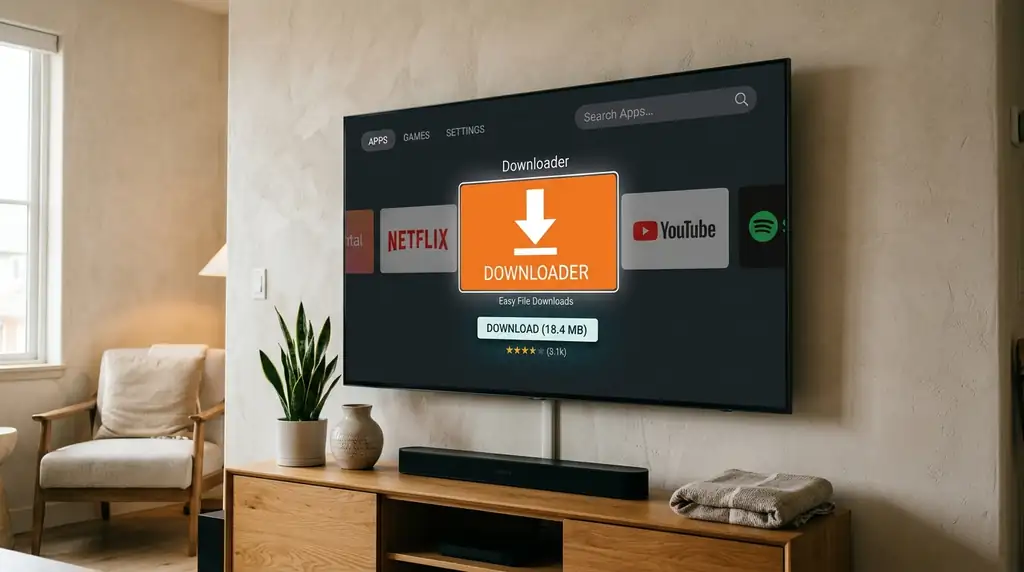
- Go back to the home screen and open the search (the magnifying glass).
- Type "Downloader", or hold the Alexa button and just say it.
- Pick the orange Downloader app and press Get.
Good to know
Once it’s installed, go back to Settings > My Fire TV > Developer Options > Install unknown apps and make sure Downloader is switched on. If you skip this, the next step won’t work.
04. Type the Download Code for Your Player
Open Downloader and enter a short code. It downloads the player app you’ll watch Krooz TV in.
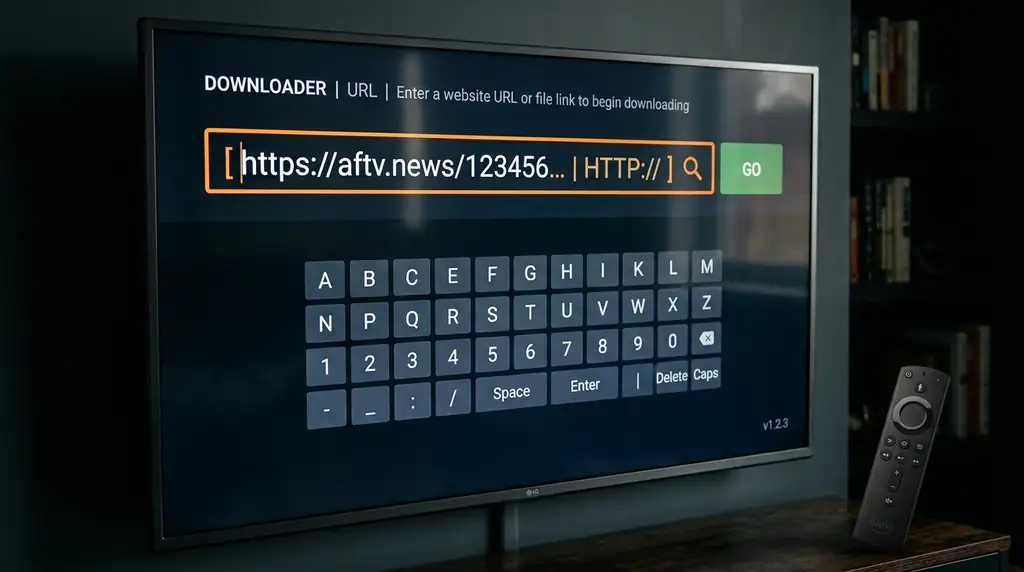
- Open Downloader. When it asks for access to files, press Allow, then close the welcome message.
- Click on the box in the middle of the screen so the keyboard opens.
- Type 78522 for TiviMate or 250931 for IPTV Smarters Pro (or the code from your welcome email) and press Go.
78522 = TiviMate | 250931 = IPTV Smarters ProType only the numbers. If a code doesn’t work, send us a WhatsApp message and we’ll send you a fresh one.
Good to know
Not sure which player to choose? TiviMate feels the most like a cable box. IPTV Smarters is simpler and great for movies and series. You can always try the other one later.
05. Install the App, Then Delete the File
When the download finishes, the Fire TV installer opens by itself. Install, then clean up.
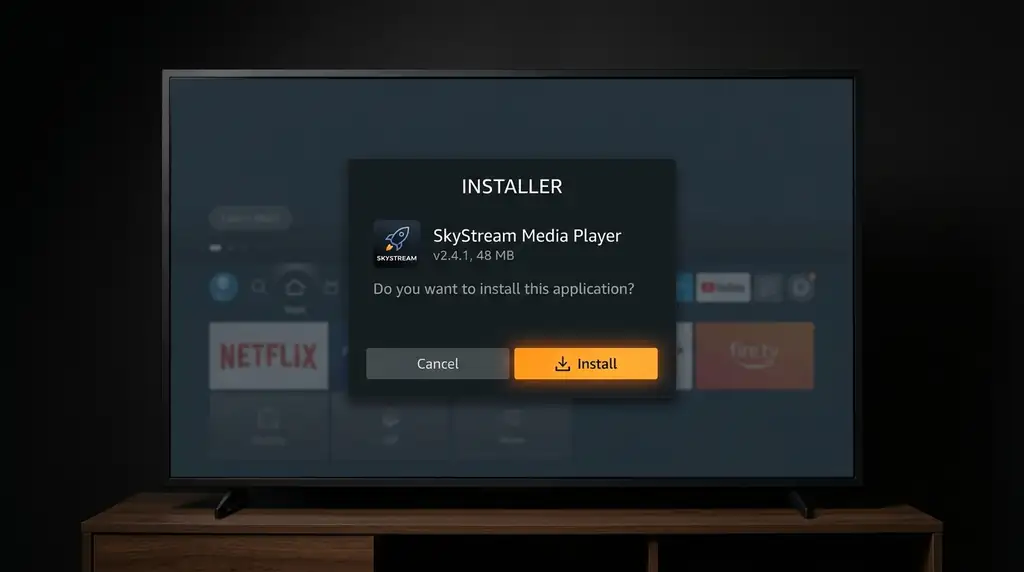
- Press Install at the bottom right of the screen.
- Wait a few seconds until it says "App installed", then press Done.
- Back in Downloader, choose Delete (twice) to remove the installation file and get your storage back.
Good to know
Deleting the file doesn’t remove the app. It only clears the installer, which you don’t need anymore.
06. Open the Player and Sign In to Krooz TV
Last step. Open the app you just installed, add your Krooz TV login and your channels load.
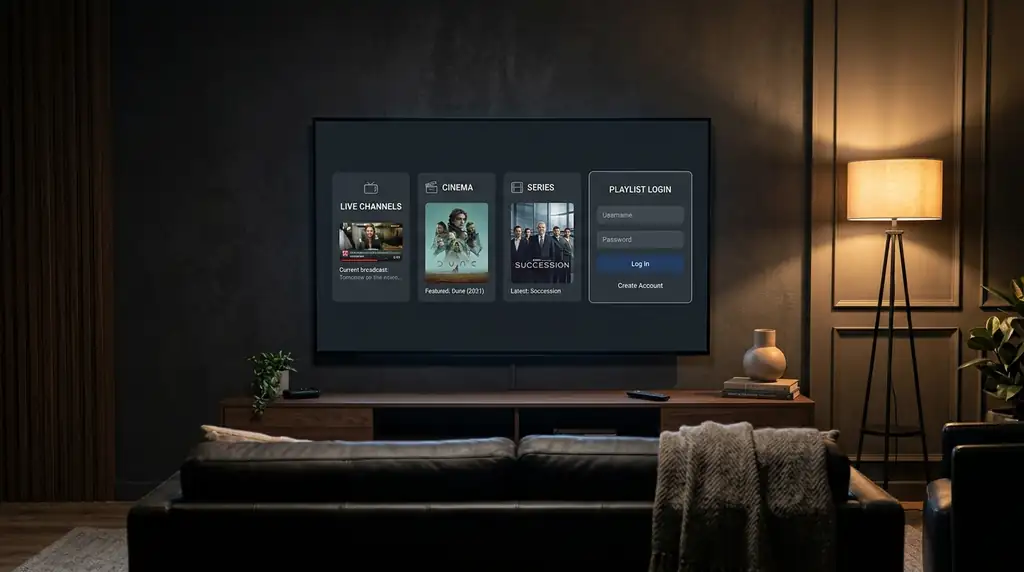
- Hold the Home button and choose Apps. Your new player is at the bottom of the list.
- Press the menu button (three lines) on the remote and pick Move to front, so it’s always on your home screen.
- Open the app, choose Xtream Codes (in IPTV Smarters: "Login with Xtream Codes API"), enter the server URL, username and password from your email and press Add User.
Good to know
Use Xtream Codes rather than the long M3U link. It’s less to type, and the TV guide fills in by itself.
Fire TV Devices That Work With Krooz TV
Every current Fire TV works. Here’s where Developer Options hides on each one.
| Device | Fire OS | RAM / Storage | Where to Unlock |
|---|---|---|---|
Fire TV Stick 4K Max (2nd Gen) 4K, Dolby Vision, Wi-Fi 6E | Fire OS 8 | 2 GB / 16 GB | Settings > My Fire TV > About > click the name 7 times |
Fire TV Stick 4K (2nd Gen) 4K HDR, Wi-Fi 6 | Fire OS 8 | 2 GB / 8 GB | Settings > My Fire TV > About > click the name 7 times |
Fire TV Cube (3rd Gen) 4K, built-in Ethernet | Fire OS 7 / 8 | 2 GB / 16 GB | Settings > My Fire TV > About > click Fire TV Cube 7 times |
Fire TV Stick HD / Lite Full HD (1080p) | Fire OS 7 / 8 | 1 GB / 8 GB | Settings > My Fire TV > About > click the name 7 times |
Fire TV smart TVs (Amazon Omni, Insignia, Toshiba and others) 4K HDR | Fire OS 7 / 8 | 1.5–2 GB / 8–16 GB | Settings > Device & Software > About > click the TV name 7 times |
Something Not Working? Quick Fixes
The problems we help people with most often, and how to sort them out yourself.
I can’t find Developer Options
Cause: Newer Fire TV sticks hide it until you unlock it.
- Go to Settings > My Fire TV > About (on a Fire TV smart TV: Device & Software > About).
- Highlight the name of your device at the top and press the middle button seven times.
- When the "you are a developer" message appears, press Back once. Developer Options is now there.
"App not installed" or a parse error
Cause: Usually the stick is full, the download stopped halfway, or an older version of the same app is in the way.
- Check you have at least 150 MB free under Settings > My Fire TV > About > Storage.
- If an older version of the player is installed, uninstall it first.
- Clear Downloader’s cache (Settings > Applications > Manage Installed Applications > Downloader > Clear cache) and download again.
Live channels keep freezing or buffering
Cause: Most of the time it’s the Wi-Fi: a stick behind the TV on 2.4 GHz, or a busy network in the evening.
- Connect the stick to your 5 GHz Wi-Fi, or better, use an Ethernet adapter.
- Clear the player’s cache: Settings > Applications > Manage Installed Applications > your player > Force stop > Clear cache.
- In the player’s settings, set the buffer to Medium. Still stuck? Message us with the channel name and the time it happened.
The TV guide is empty
Cause: The guide didn’t finish downloading the first time, or the time zone on the stick is wrong.
- In the player, go to Settings > EPG and refresh it. Give it a minute without leaving the app.
- Check the time zone under Settings > Preferences > Time Zone.
- Signed in with an M3U link? Switch to Xtream Codes, which brings the guide with it.
"Authorization failed" or wrong login
Cause: Almost always a typo: a space at the end, a capital letter, or a server URL without http:// at the start.
- Check there’s no space after your username, password or server URL.
- Type the server URL exactly as it is in the email, including http:// and the port number if there is one.
- Make sure you’re not already watching on more screens than your plan includes.
Channels show up but won’t play
Cause: Some internet providers have slow DNS servers or slow down video at busy times.
- Try a different DNS on your router or stick, like 1.1.1.1 (Cloudflare) or 8.8.8.8 (Google).
- Restart the stick: hold the middle button and Play/Pause together for five seconds.
- If it only happens during big events, your provider may be slowing video. A good VPN app usually helps.
Frequently Asked Questions
The things people ask us most about Krooz TV on a Firestick.
No. "Jailbreaking" is just a scary word for what you did in Step 2. Fire TV lets you install apps from outside the Amazon store once you switch that option on. Nothing is hacked, and your warranty isn’t affected.